Customizing the UI
Customizing Dag UI Header and Airflow Page Titles
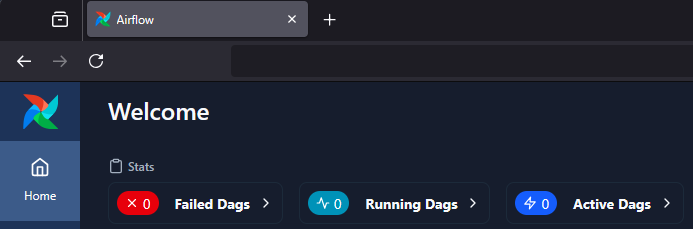
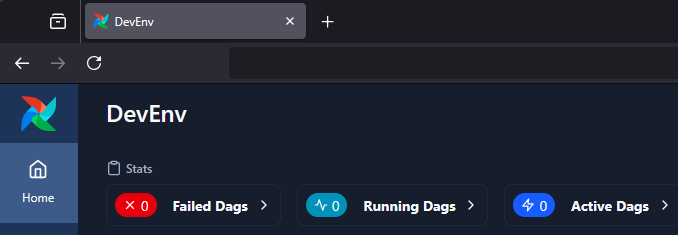
Airflow now allows you to customize the Dag home page header and page title. This will help distinguish between various installations of Airflow or simply amend the page text.
Note
The custom title will be applied to both the page header and the page title.
To make this change, simply:
Add the configuration option of
instance_nameunder the[api]section insideairflow.cfg:
[api]

instance_name = "DevEnv"
Alternatively, you can set a custom title using the environment variable:
AIRFLOW__API__INSTANCE_NAME = "DevEnv"
Screenshots
Before
After
Customizing UI theme
We can provide a JSON configuration to customize the UI.
Important
You can customize the
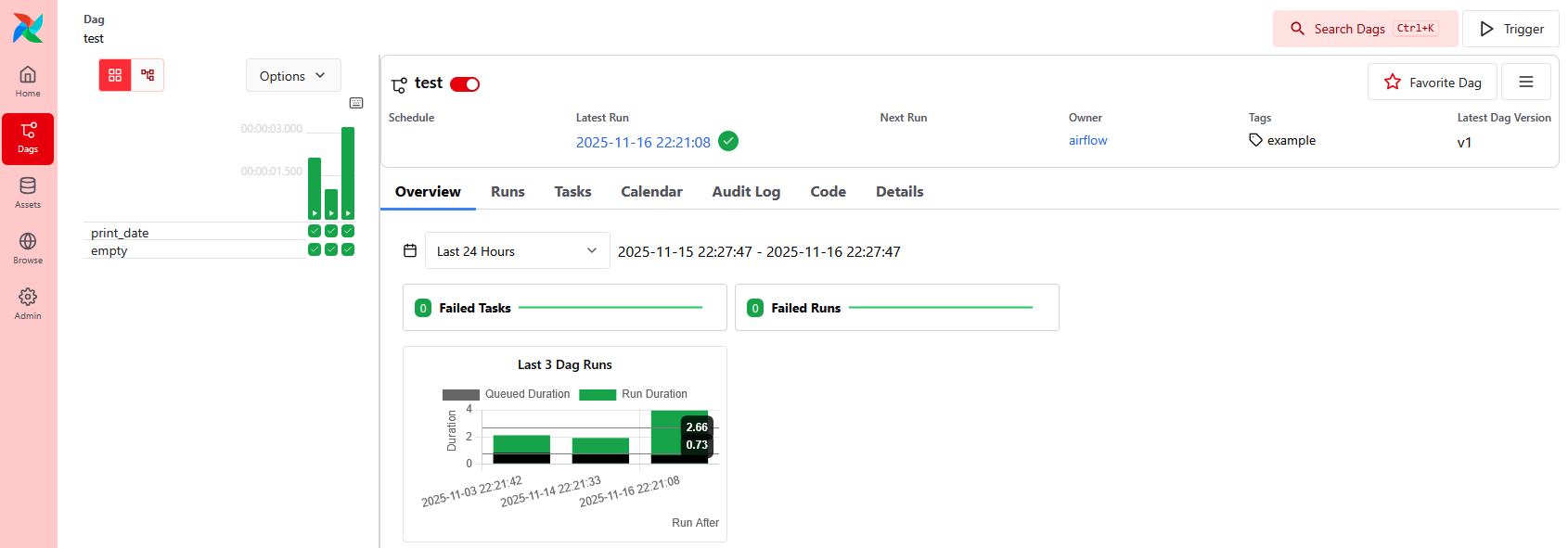
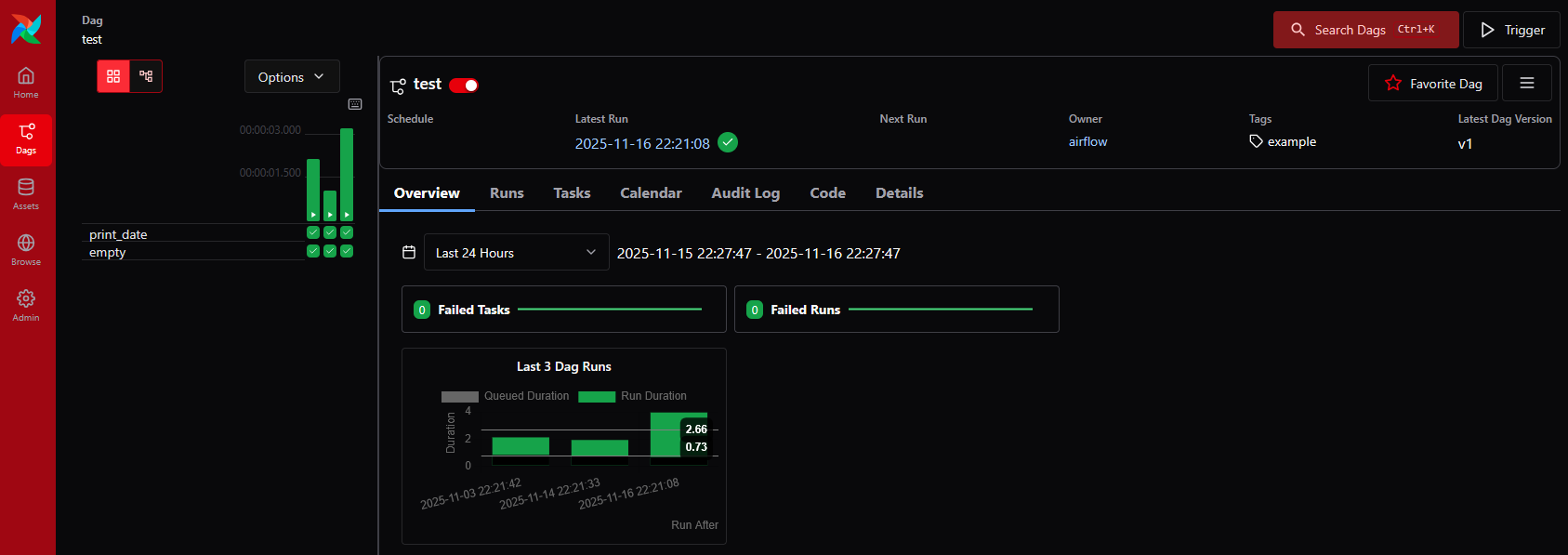
brand,gray,black, andwhitecolor tokens,globalCss, and the navigation icon viaicon(andicon_dark_mode).All color tokens are optional — you can override any subset without supplying the others.
brandandgrayeach accept an 11-shade scale with keys50–950.blackandwhiteeach accept a single color:{ "value": "oklch(...)" }.OKLCH colors must use the format
oklch(l c h). For more info see themeThere is also the ability to provide custom global CSS for fine-grained theme control.
Note
Modifying the brand color palette also modifies the navbar/sidebar.
Modifying gray controls neutral surfaces and borders.
Modifying black and white controls the darkest and lightest surface colors.
To customize the UI, simply:
Add the configuration option of
themeunder the[api]section insideairflow.cfg:
[api]

theme = {
    "tokens": {
      "colors": {
        "brand": {
          "50": { "value": "oklch(0.971 0.013 17.38)" },
          "100": { "value": "oklch(0.936 0.032 17.717)" },
          "200": { "value": "oklch(0.885 0.062 18.334)" },
          "300": { "value": "oklch(0.808 0.114 19.571)" },
          "400": { "value": "oklch(0.704 0.191 22.216)" },
          "500": { "value": "oklch(0.637 0.237 25.331)" },
          "600": { "value": "oklch(0.577 0.245 27.325)" },
          "700": { "value": "oklch(0.505 0.213 27.518)" },
          "800": { "value": "oklch(0.444 0.177 26.899)" },
          "900": { "value": "oklch(0.396 0.141 25.723)" },
          "950": { "value": "oklch(0.258 0.092 26.042)" }
        }
      }
    }
  }
Note
The whitespace, particularly on the last line, is important so a multi-line value works properly. More details can be found in the the configparser docs.
Alternatively, you can set a custom theme using the environment variable:
AIRFLOW__API__THEME='{
  "tokens": {
    "colors": {
      "brand": {
        "50": { "value": "oklch(0.971 0.013 17.38)" },
        "100": { "value": "oklch(0.936 0.032 17.717)" },
        "200": { "value": "oklch(0.885 0.062 18.334)" },
        "300": { "value": "oklch(0.808 0.114 19.571)" },
        "400": { "value": "oklch(0.704 0.191 22.216)" },
        "500": { "value": "oklch(0.637 0.237 25.331)" },
        "600": { "value": "oklch(0.577 0.245 27.325)" },
        "700": { "value": "oklch(0.505 0.213 27.518)" },
        "800": { "value": "oklch(0.444 0.177 26.899)" },
        "900": { "value": "oklch(0.396 0.141 25.723)" },
        "950": { "value": "oklch(0.258 0.092 26.042)" }
      }
    }
  }
}'
Screenshots
Light Mode
Dark Mode
To add custom CSS rules to the airflow UI, you can include a
globalCsskey in the theme configuration. More information https://chakra-ui.com/docs/theming/customization/global-css
AIRFLOW__API__THEME='{
  "tokens": {
    "colors": {
      "brand": {
        "50": { "value": "oklch(0.971 0.013 17.38)" },
        "100": { "value": "oklch(0.936 0.032 17.717)" },
        "200": { "value": "oklch(0.885 0.062 18.334)" },
        "300": { "value": "oklch(0.808 0.114 19.571)" },
        "400": { "value": "oklch(0.704 0.191 22.216)" },
        "500": { "value": "oklch(0.637 0.237 25.331)" },
        "600": { "value": "oklch(0.577 0.245 27.325)" },
        "700": { "value": "oklch(0.505 0.213 27.518)" },
        "800": { "value": "oklch(0.444 0.177 26.899)" },
        "900": { "value": "oklch(0.396 0.141 25.723)" },
        "950": { "value": "oklch(0.258 0.092 26.042)" }
      }
    }
  },
  "globalCss": {
    "button": {
      "text-transform": "uppercase"
    }
  }
}'
Customizing gray, black, and white tokens
You can override the neutral palette and surface colors independently of brand. gray controls
borders and neutral UI elements, while black and white control the darkest and lightest surface
backgrounds. All fields are optional — supply only the tokens you want to change.
AIRFLOW__API__THEME='{
  "tokens": {
    "colors": {
      "gray": {
        "50":  { "value": "oklch(0.975 0.002 264.0)" },
        "100": { "value": "oklch(0.950 0.003 264.0)" },
        "200": { "value": "oklch(0.880 0.005 264.0)" },
        "300": { "value": "oklch(0.780 0.008 264.0)" },
        "400": { "value": "oklch(0.640 0.012 264.0)" },
        "500": { "value": "oklch(0.520 0.015 264.0)" },
        "600": { "value": "oklch(0.420 0.015 264.0)" },
        "700": { "value": "oklch(0.340 0.012 264.0)" },
        "800": { "value": "oklch(0.260 0.009 264.0)" },
        "900": { "value": "oklch(0.200 0.007 264.0)" },
        "950": { "value": "oklch(0.145 0.005 264.0)" }
      },
      "black": { "value": "oklch(0.220 0.025 288.6)" },
      "white": { "value": "oklch(0.985 0.002 264.0)" }
    }
  }
}'
Icon (SVG-only)
You can replace the default Airflow icon in the navigation bar by providing an icon key (and optionally
icon_dark_mode for dark color mode) in the theme configuration. The value must be either an absolute
http(s) URL or an app-relative path starting with /, and must point to an .svg file.
[api]

theme = {
    "tokens": {
      "colors": {
        "brand": {
          "50": { "value": "oklch(0.971 0.013 17.38)" },
          "100": { "value": "oklch(0.936 0.032 17.717)" },
          "200": { "value": "oklch(0.885 0.062 18.334)" },
          "300": { "value": "oklch(0.808 0.114 19.571)" },
          "400": { "value": "oklch(0.704 0.191 22.216)" },
          "500": { "value": "oklch(0.637 0.237 25.331)" },
          "600": { "value": "oklch(0.577 0.245 27.325)" },
          "700": { "value": "oklch(0.505 0.213 27.518)" },
          "800": { "value": "oklch(0.444 0.177 26.899)" },
          "900": { "value": "oklch(0.396 0.141 25.723)" },
          "950": { "value": "oklch(0.258 0.092 26.042)" }
        }
      }
    },
    "icon": "/static/company-icon.svg",
    "icon_dark_mode": "/static/company-icon-dark.svg"
  }
Note
Only SVG icons are supported.
If the icon fails to load, Airflow falls back to its default icon.
Icon sizing is controlled by the UI and cannot be configured via the theme.
Adding Dashboard Alert Messages
Extra alert messages can be shown on the Airflow dashboard. This can be useful for warning about setup issues, announcing changes to end users, or providing real-time status information. Dashboard alerts support both static and dynamic content.
Basic Static Alerts
To add static alert messages that remain constant until the webserver is restarted:
Create an
airflow_local_settings.pyfile and place it in$PYTHONPATHor in the$AIRFLOW_HOME/configfolder. (Airflow adds$AIRFLOW_HOME/configtoPYTHONPATHwhen Airflow is initialized)Add the following contents to
airflow_local_settings.py:
Note
See Configuring local settings for details on how to configure local settings.
from airflow.api_fastapi.common.types import UIAlert

DASHBOARD_UIALERTS = [
    UIAlert("Welcome to Airflow", category="info"),
]
Restart the Airflow webserver, and you should now see the alert message displayed on the dashboard.
Alert Categories
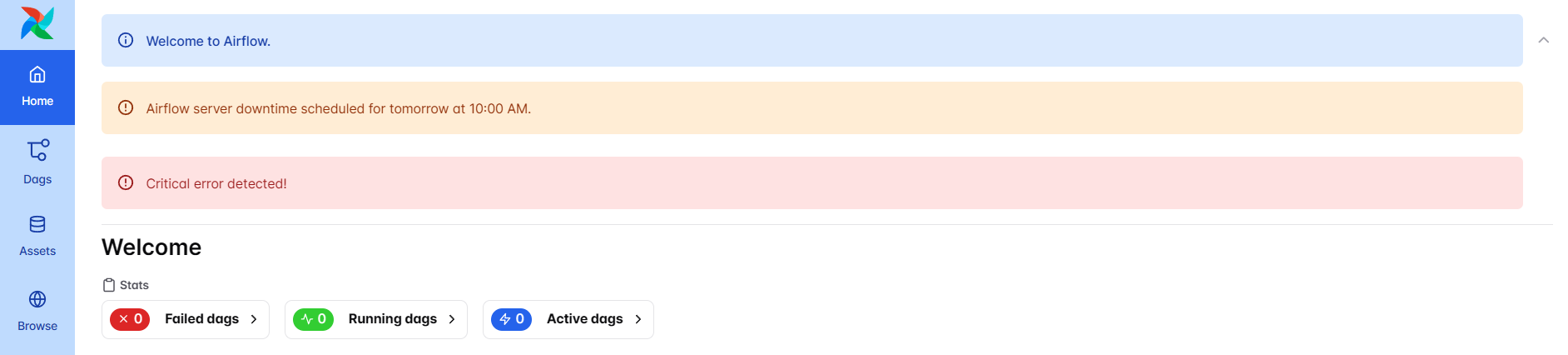
You can control the category of the alert message. Available categories include:
"info"(default) - Blue informational alerts"warning"- Yellow warning alerts"error"- Red error alerts
from airflow.api_fastapi.common.types import UIAlert

DASHBOARD_UIALERTS = [
    UIAlert(text="Welcome to Airflow.", category="info"),
    UIAlert(text="Airflow server downtime scheduled for tomorrow at 10:00 AM.", category="warning"),
    UIAlert(text="Critical error detected!", category="error"),
]
Markdown Content in Alerts
Markdown can be included in alert messages for richer formatting. In the following example, we show an alert message of heading 2 with a link included:
from airflow.api_fastapi.common.types import UIAlert

DASHBOARD_UIALERTS = [
    UIAlert(text="## Visit [airflow.apache.org](https://airflow.apache.org)", category="info"),
]

Dynamic Dashboard Alerts
Dashboard alerts support dynamic content that updates each time the dashboard page is refreshed. This allows for real-time
status updates without requiring webserver restarts. Dynamic alerts must be defined as an instance of an iterable object.
The recommended approach is to create a class that subclasses list and implements a custom __iter__ method that
yields fresh alerts each time Airflow iterates over the alerts.
Note
When implementing dynamic alerts it is important to keep alert generation logic lightweight to avoid impacting dashboard load times. Consider caching results for expensive operations and handle exceptions gracefully to prevent alert generation from breaking the UI.
Dynamic alerts are particularly useful for:
Real-time notifications: Display current status updates or announcements
Deployment notifications: Show current deployment status, build progress, or GitOps state
Temporary maintenance alerts: Provide time-sensitive information about ongoing maintenance or issues
Environment-specific warnings: Display different alerts based on current environment conditions
External service status: Show the availability of dependent services or APIs
Creating Dynamic Alerts
To create dynamic alerts, define DASHBOARD_UIALERTS as an instance of a class that subclasses list
and implements the __iter__ method. The UI will iterate over any number UIAlert instances yielded by
this method and expose them as alerts on the dashboard page.
The example below demonstrates how logic can be applied to yield alerts dynamically. More practical use cases might include alerts yielded from APIs, database queries or files.
import random
from airflow.api_fastapi.common.types import UIAlert


class DynamicAlerts(list):
    def __iter__(self):
        # This method is called each time Airflow iterates over DASHBOARD_UIALERTS
        # Example: Flip a coin
        if random.choice([True, False]):
            yield UIAlert("Heads!", category="info")
        else:
            yield UIAlert("Tails!", category="warning")


# Create an instance of the class
DASHBOARD_UIALERTS = DynamicAlerts()